Cybersecurity: A Practical Guide to Protecting Your Digital World
Introduction
We use the internet to bank, shop, work, study, talk with friends, and store personal information. That convenience also creates opportunities for criminals to steal passwords, trick people into sending money, or break into computers and online accounts. Cybersecurity is the everyday practice of reducing those risks and protecting devices, networks, accounts, and data.
You do not need to be a technology expert to improve your online safety. A few steady habits—using unique passwords, turning on multi-factor authentication, updating software, and pausing before clicking unexpected links—can make a meaningful difference. This guide explains the basics and gives you a straightforward process to get started.
Digital security starts with protecting the devices and accounts you use every day.
What Is Cybersecurity?
Cybersecurity is the set of people, processes, and technologies used to protect digital systems and information from unauthorized access, damage, disruption, or theft. It applies to individuals, families, businesses, schools, and public services.
In practice, cybersecurity includes actions such as:
- Securing email, banking, social media, and work accounts.
- Keeping computers, phones, apps, and routers updated.
- Limiting who can access sensitive files and systems.
- Protecting information with backups and encryption where appropriate.
- Recognizing suspicious messages and knowing how to report them.
- Preparing to respond if an account or device is compromised.
Cybersecurity cannot eliminate every risk. Its purpose is to make attacks harder, reduce the amount of harm they can cause, and help people recover more quickly.
Common Cyber Threats to Know
Understanding a few common threats makes it easier to spot warning signs:
- Phishing: A deceptive email, text, phone call, or website that tries to get you to reveal information, transfer money, or open a harmful attachment. Messages may imitate a real company or create pressure to act immediately.
- Malware: Software designed to spy on, damage, or gain unauthorized access to a device. It can arrive through unsafe downloads, malicious attachments, or compromised websites.
- Ransomware: A type of malware that can lock or encrypt files and demand payment. Keeping separate backups can help with recovery, though it does not prevent an attack.
- Password attacks: Attempts to guess, reuse, or steal account passwords. Reusing one password across several services can put multiple accounts at risk if one service is breached.
- Social engineering: Manipulation that persuades someone to share confidential information, approve access, or take an action that benefits an attacker.
- Denial-of-service attacks: Attempts to overwhelm an online service with traffic so that legitimate users cannot access it. These attacks more commonly affect organizations and service providers than individual home users.
How to Improve Your Cybersecurity: A Step-by-Step Process
Use this practical process to strengthen personal accounts and devices. For a workplace or business, add organization-specific policies, monitoring, and incident-response planning.
1. Secure your most important accounts first
Start with your primary email account, password manager, financial accounts, cloud storage, and mobile-provider account. Email is especially important because it is often used to reset other passwords.
2. Use a unique password for every account
Choose long, hard-to-guess passwords or passphrases, and do not reuse them across services. A reputable password manager can generate and store unique passwords so you do not have to memorize each one. Protect the password manager itself with a strong master password and multi-factor authentication if available.
3. Turn on multi-factor authentication (MFA)
MFA asks for an additional proof of identity beyond a password, such as an authenticator-app approval, security key, or one-time code. Enable it on important accounts, particularly email, banking, cloud storage, and social media. Use the strongest option the service supports, and store recovery codes somewhere safe.
4. Install software and security updates
Turn on automatic updates for your operating system, browser, apps, and internet-connected devices when possible. Updates often include fixes for security weaknesses. Replace devices that no longer receive security updates when you can do so safely and affordably.
5. Learn to pause and check unexpected messages
Be cautious when a message demands urgent action, asks for passwords or payment, or includes an unexpected link or attachment. Instead of using the link in the message, visit the organization’s official website or contact it using a trusted phone number. Report suspected phishing through your email or workplace reporting process.
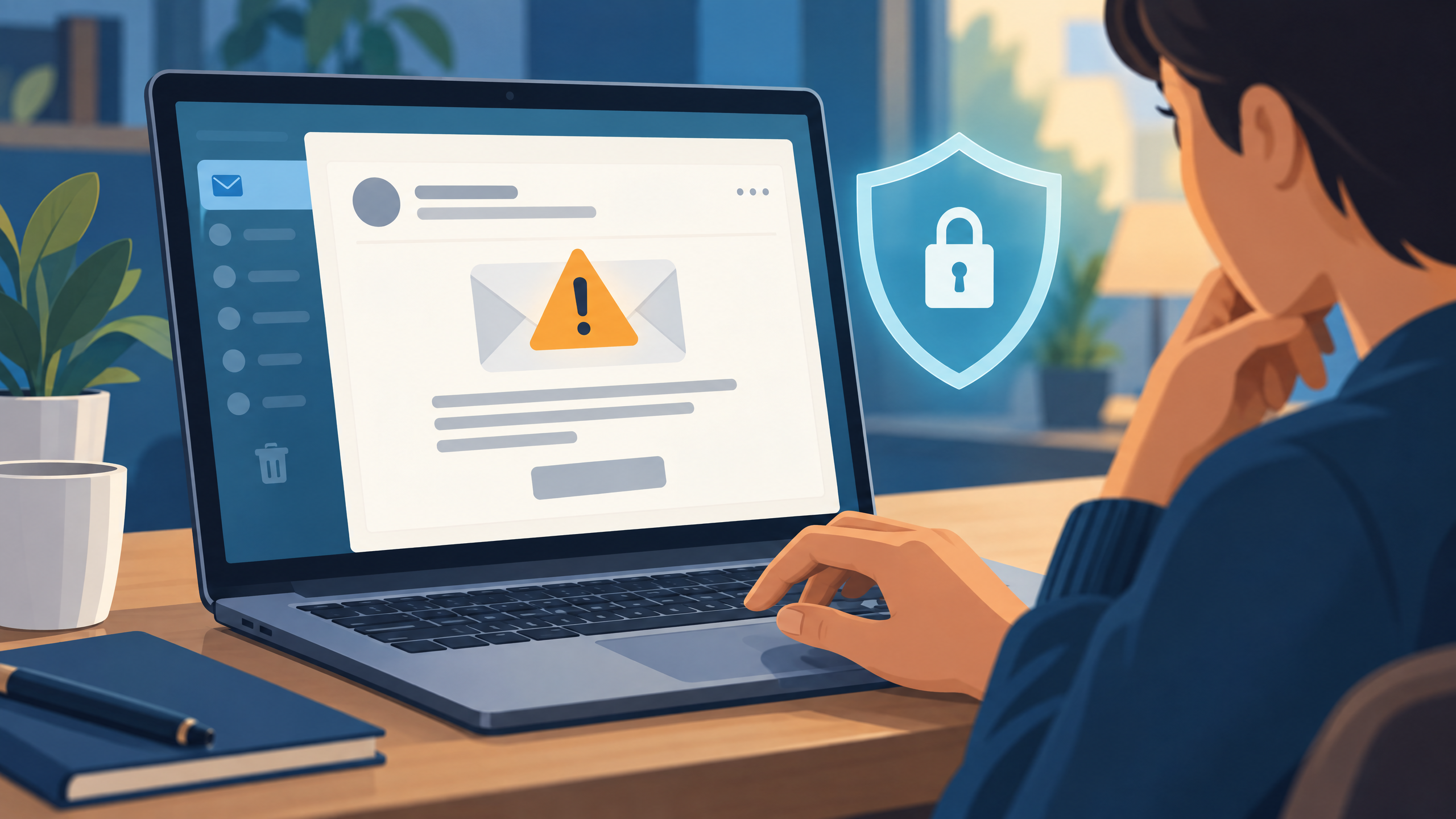
When a message creates urgency, verify it through a separate, trusted channel before acting.
6. Protect your home network and devices
Change default administrator passwords on your router and smart devices, use the router’s supported security settings, and secure Wi-Fi with a strong password. Use a screen lock on phones and computers, and avoid installing apps or software from untrusted sources. On public Wi-Fi, avoid sensitive activity unless you can use a trusted, secure connection.
7. Back up important files
Keep backups of important photos, documents, and work files. A backup should be separate from the device it protects; for valuable data, consider more than one backup method. Check occasionally that you can restore a file. Backups are helpful for accidental deletion, device failure, and some cyber incidents, but they do not replace other safeguards.
8. Make a simple response plan
Know how to secure an account if you suspect it has been accessed: change its password from a trusted device, end unknown sessions, review recovery settings, turn on MFA, and contact the provider or your organization’s IT/security team. For suspected financial fraud or identity theft, contact the relevant financial institution and follow the appropriate local reporting guidance.
Important Information and Documents to Protect
Think about where sensitive information is stored and who can access it. Depending on your situation, this may include:
- Identity records, such as passport or driver’s-license details.
- Tax, employment, insurance, and financial documents.
- Health information and appointment records.
- Password-manager recovery codes and account-recovery details.
- Family photos, school files, business records, and customer information.
Store only what you need, use secure storage with access controls, and avoid sending sensitive documents through unverified links or ordinary messages. Keep protected backups of important files. Do not store recovery codes in the same place as the account they recover.
Who Needs Cybersecurity? Eligibility and Career Requirements
Who should follow cybersecurity best practices?
Everyone who uses a connected device or online account can benefit from basic cybersecurity. There is no application, qualification, or special equipment required to start using unique passwords, MFA, software updates, cautious link handling, and backups.
The level of protection should reflect the information and services at stake. A small business that handles customer or payment data, for example, may need written access rules, staff training, secure backups, and a plan for responding to incidents. Requirements can vary by industry, location, and contract, so organizations should check the rules that apply to them.
Do you need a degree to work in cybersecurity?
There is no single universal eligibility checklist for a cybersecurity career. Employers set their own requirements, and roles vary widely. Some positions ask for a degree, relevant experience, or certifications; others emphasize practical skills, projects, apprenticeships, or adjacent experience. Requirements depend on the role and employer, so read actual job postings rather than assuming one credential is mandatory for every job.
People exploring the field can begin by learning networking, operating systems, basic scripting, and security fundamentals; completing safe hands-on labs; and documenting projects. The NIST NICE Framework is a useful reference for exploring the different kinds of cybersecurity work and the skills associated with them. Never test security tools or techniques on systems you do not own or have explicit permission to assess.

Cybersecurity includes many roles, from monitoring and incident response to software and risk management.
Cybersecurity Checklist
Use this quick list as a starting point:
- Use unique passwords for important accounts.
- Turn on MFA, especially for email and financial accounts.
- Enable automatic software updates where practical.
- Treat unexpected links, attachments, and payment requests cautiously.
- Back up important files and check that they can be restored.
- Secure your home router and lock your devices.
- Know how to report a suspicious message or compromised account.
Frequently Asked Questions About Cybersecurity
What is the simplest way to improve cybersecurity?
Start with your email account: use a unique password, turn on MFA, and check that its recovery email and phone number are current. Then apply the same protections to financial and cloud-storage accounts.
Is antivirus software enough to protect a computer?
No single tool can prevent every threat. Security software can be one layer, but it works best alongside software updates, unique passwords, MFA, safe browsing habits, and backups.
How can I tell if an email is phishing?
Look for unexpected requests, unusual sender addresses, pressure to act quickly, links that do not match the claimed organization, and unexpected attachments. These clues are not proof by themselves. Verify the request through a separate official channel rather than clicking or replying.
What should I do if I clicked a suspicious link?
If you entered a password, change it promptly from a trusted device and change it anywhere else you reused it. Enable MFA, sign out unknown sessions, and contact the affected service or your IT team. If you downloaded a file, avoid opening it and use trusted security support to check the device. If payment details were exposed, contact the financial institution.
Is cybersecurity only for large companies?
No. Individuals and small organizations also rely on email, devices, cloud accounts, and online payments. Basic protective habits are useful at any size, while organizations handling sensitive data may need additional controls tailored to their risks and obligations.
Can anyone start learning cybersecurity?
Yes. Many people begin with foundational technology skills and practical, legal training labs. Career requirements differ by role and employer, so use job descriptions and trusted workforce resources to plan a relevant learning path.
Conclusion
Cybersecurity is not a one-time setup or a promise that nothing will ever go wrong. It is a set of practical habits that helps protect your accounts, devices, and information over time. Start with unique passwords, MFA, timely updates, careful handling of unexpected messages, and reliable backups. A few consistent steps can make your digital life more resilient.
Disclaimer
This article is for general educational purposes only. It is not individualized cybersecurity, legal, financial, or compliance advice, and following these steps cannot guarantee that an attack will not occur. Security needs and legal obligations vary by person, organization, industry, and location. For an active incident, contact the affected service provider, your organization’s security team, or an appropriately qualified professional.
Sources and Further Reading
- CISA: Secure Our World — everyday guidance on phishing, passwords, MFA, and software updates.
- NIST: NICE Framework Resource Center — information about cybersecurity work roles, skills, education, and workforce development.
Publishing note: This draft is written to be informative and reader-focused, but no article can guarantee search rankings or advertising approval. Before publishing, add your site’s author details and any required editorial or privacy information, and confirm that all images and links display correctly in your CMS.